Feature Drop: Introducing Item Variants for Your Cubrin Storefront
If you sell fashion, gadgets, or custom products, your inventory isn't one-size-fits-all. A hoodie comes in Medium, Large, and XL. An iPhone 14 comes in base, Pro, and Pro Max. A handmade bag comes in black, tan, and cream.
Until today, adding those options to your Cubrin storefront meant creating multiple separate item listings. Your shop looked cluttered, buyers had to guess which listing was which, and checkout turned into a game of "is this the right one?"
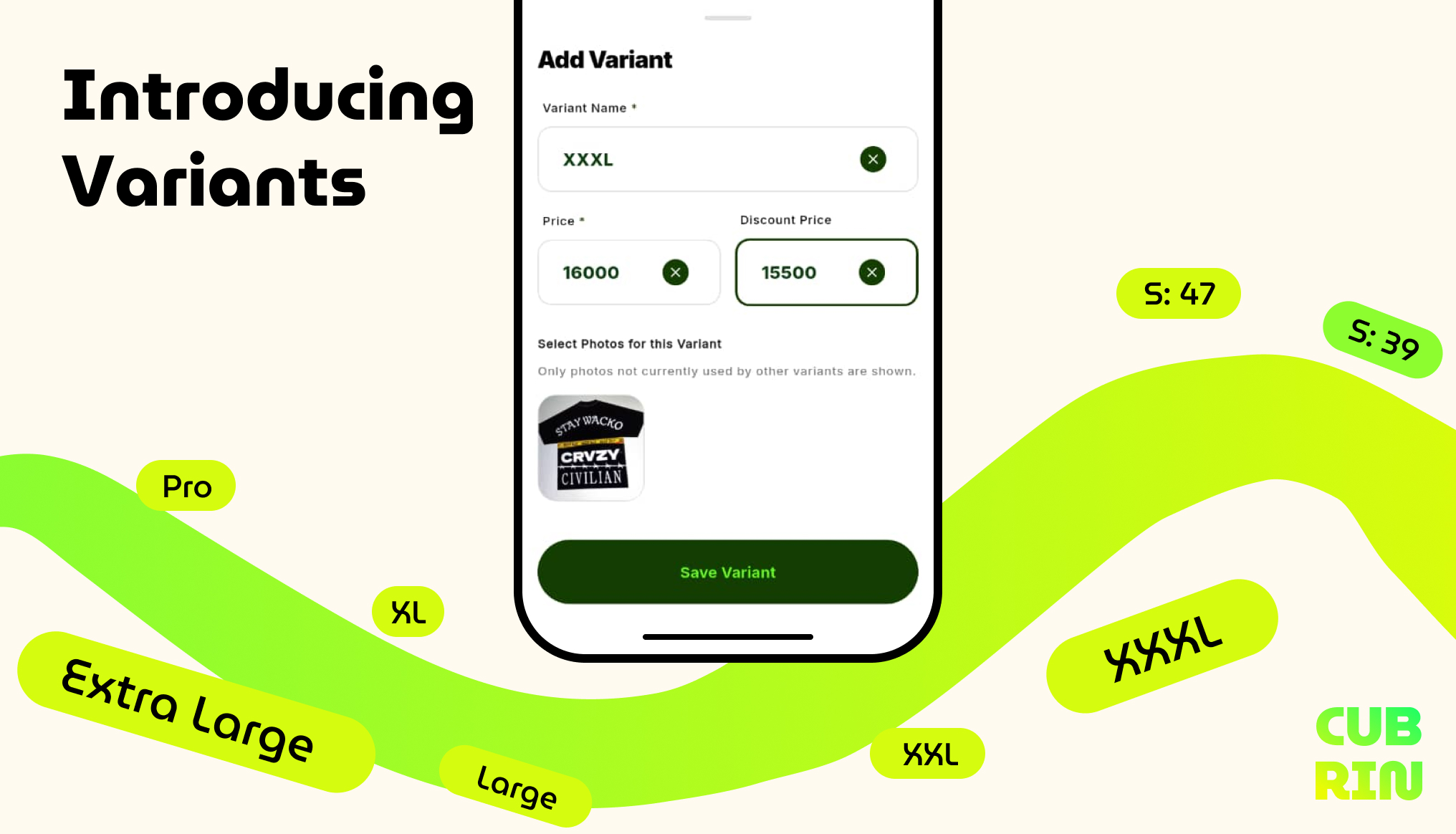
That changes right now. We are thrilled to announce Item Variants — a new feature that lets you group different sizes, colors, and versions of a product under a single, clean listing, each with its own unique price and image.
Open your Cubrin dashboard and add your first variant →
What Are Item Variants on Cubrin?
Item Variants let you sell several versions of the same product from one listing. Instead of creating "iPhone 14", "iPhone 14 Pro", and "iPhone 14 Pro Max" as three separate items, you create one item and attach each version as a variant.
The same idea works for a hoodie in Medium, Large, and XL, a sneaker in three colorways, or a body cream in 250ml and 500ml. Each variant keeps its own image and its own price, so the exact option a buyer selects is the exact option they pay for.
| Base Item | Variants You Can Add |
|---|---|
| Hoodie | Medium, Large, XL — each at its own price |
| iPhone 14 | Base, Pro, Pro Max — each with its own photo |
| Handmade bag | Black, Tan, Cream — each with its own image |
| Body cream | 250ml, 500ml, 1L — each with a different price |
Why Item Variants Beat Duplicate Listings
Separate listings were the old workaround. They got the job done, but they created a storefront that was harder to browse, harder to update, and easier for buyers to abandon.
| What Buyers Experience | Separate Listings | Item Variants |
|---|---|---|
| Your storefront | The same product repeated three or four times | One clean product card |
| Choosing an option | Buyers open every listing to compare | All options on one product page |
| Price accuracy | Easy to update one listing and forget the rest | Every variant carries its own price |
| Product photos | The wrong photo ends up on the wrong listing | Each variant is matched to its own image |
| Sharing on WhatsApp | Multiple links for one product | One unified link for every option |
| Checkout confidence | "Did I tap the right size?" | The buyer selects the exact version first |
Fewer listings also mean a cleaner catalog, a stronger link-in-bio, and a storefront that looks like a real brand instead of a pile of duplicates.
How to Add Variants to Your Items
The entire flow lives inside Create Item. Here is exactly how to set it up in seconds.
Step 1 — Start your listing and upload your photos
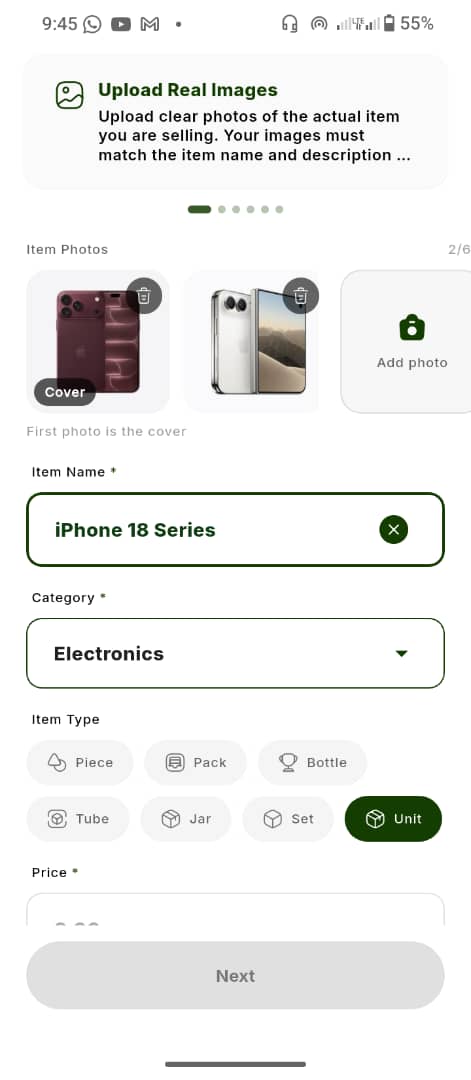
Log into your merchant dashboard and click Create Item. First, upload your images. Make sure you upload at least two photos: one representing the "Original" base item, and additional photos for the variants you plan to add — for example, the black shirt and the white shirt.
For the cleanest result, shoot every version from the same angle, in the same lighting, against the same background. It makes the variant switch feel seamless on the product page.
Step 2 — Enter the base details
Fill out the core information for your original item just like you normally would. Enter the Name, select the Category and Item Type, and set the Base Price.
The base item is the default version shoppers see first — the "Original" of the group. Pick the version most people expect when they tap your link.
Step 3 — Toggle the variant feature
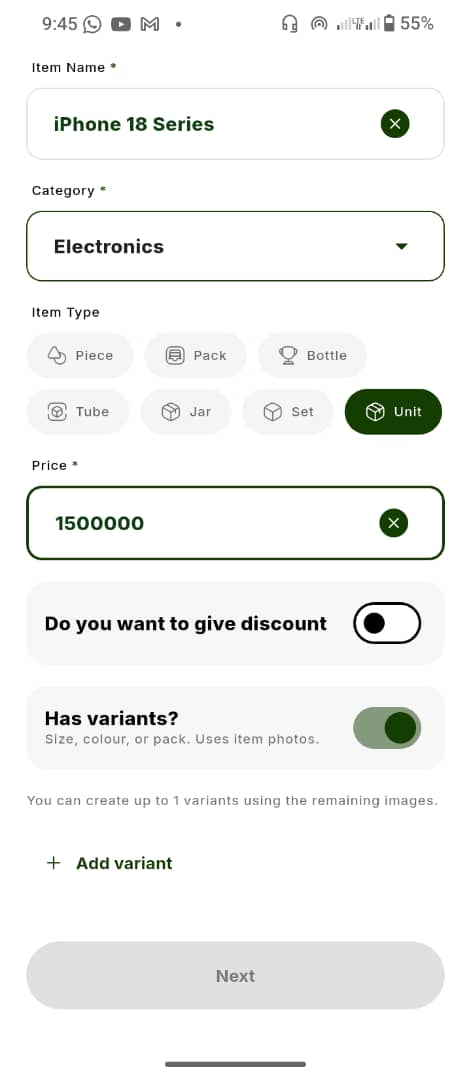
Scroll down just below the price field. You will see a new switch labeled "Add Variants". Toggle this switch ON.
Step 4 — Define your variants and prices
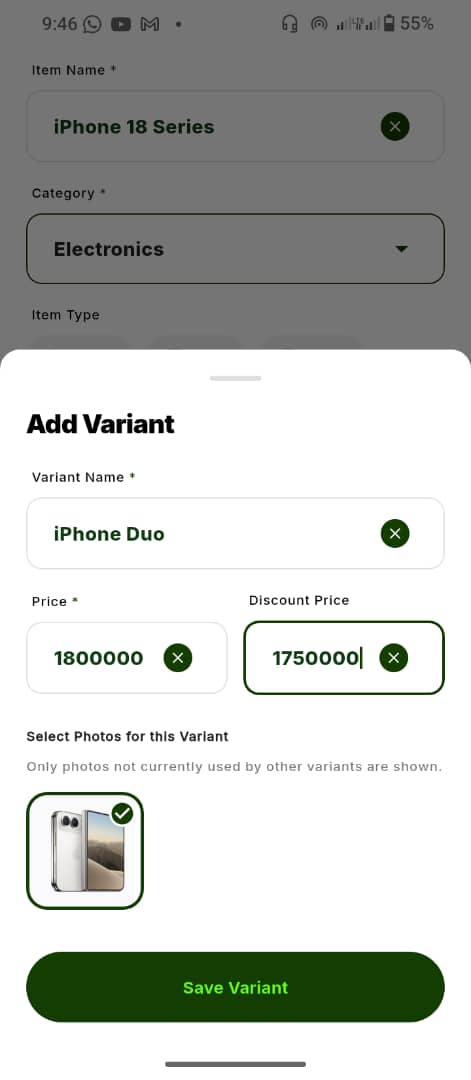
Once toggled, a popup will appear that lets you build your specific options. For each variant:
- Select the Image — choose the specific photo from your uploaded batch that matches this variant (for example, the Pro Max photo).
- Add the Name — label the variant clearly, like "Size XL", "Red Color", or "Pro Max 256GB".
- Set the Price — input the unique price for this exact version.
- Click Add Variant — the option is added to the parent listing.
Repeat Step 4 for as many variants as you have in stock. Once you hit save, your buyers will see a beautiful, unified product page where they can easily select the exact version they want before checking out through your Cubrin Escrow link.
What Your Buyers See
One listing. One link. Every option.
When a customer opens the product page, they see the base item first — then the available variants. Tapping a variant updates the product image and price to match that exact version, so there is no guesswork and no DM back-and-forth.
- 👕 Fashion sellers — one hoodie listing for Medium, Large, and XL, with the right photo and price for each.
- 📱 Gadget sellers — one phone listing for base, Pro, and Pro Max, without three duplicate cards.
- 💄 Beauty brands — one product listing for different shades or sizes.
- 🎁 Custom products — one listing for different finishes, colors, or bundle options.
Then they add the version they want to their cart and check out securely through Cubrin Escrow. And because it is all one link, you can drop it on your WhatsApp status, Instagram bio, or TikTok — no more sending buyers three different links and hoping they pick the right one.
Want to make buying even more social? Cubrin's Share Cart lets customers send the exact variant they want to a friend in one tap.
4 Tips for Cleaner, Higher-Converting Variants
1. Name variants the way buyers speak
Use "Size XL", "Red Color", or "Pro Max 256GB" — not internal codes like "XL-2" or "V2-BLK". The name should answer the buyer's question before they ask it.
2. Keep variant photos consistent
Same angle, same background, same crop. When the only thing that changes is the color or model, buyers can compare instantly and decide faster.
3. Price each version honestly
Variants can carry different prices, so set the real price for each one. If the Pro Max or the 1L size costs more, show it clearly instead of hiding the difference in a DM.
4. Only list versions you can actually fulfil
A variant is a promise. Add the sizes, colors, and models you have ready to sell, and remove a variant when it is no longer available so buyers never check out for something you cannot deliver.
Frequently Asked Questions
What are item variants on Cubrin?
Item Variants let you group different sizes, colors, or versions of one product under a single Cubrin listing. Each variant can have its own image and its own price, so buyers pick the exact option they want from one product page instead of browsing multiple duplicate listings.
Can each variant have a different price and image?
Yes. When you add a variant, you select the specific photo from your uploaded batch, give the variant a name, and set its unique price. The base item keeps its own image and base price, and every variant you add can differ.
How many variants can I add to one item?
You can add as many variants as you have versions in stock. After adding one, simply repeat the variant step — select the image, name it, set the price, and click Add Variant again. When you are done, save the item and the unified listing goes live.
How do buyers choose a variant at checkout?
Buyers see all available variants on the product page. They tap the size, color, or model they want, the image and price update to match, and then they add that exact version to the cart and check out through Cubrin Escrow. One link covers every option.
Go Live Today
Stop losing buyers to a confusing menu. A shopper who has to open three listings to compare a size is a shopper who might close the tab. A single, well-built product page keeps them moving toward checkout.
Head over to your Cubrin dashboard right now, update your inventory with Item Variants, and start pushing your new unified links to your WhatsApp status. One link, every size, every color, every version.
🚀 Add variants to your Cubrin storefront today →
Don't have a storefront yet? Claim your free branded Cubrin storefront and get your products in front of nearby buyers on shops.cubrin.com.